Mapping a Windows network is crucial for seamless file sharing and resource access in today's interconnected digital world whether you are a student setting up a home network or a young professional managing a small office environment. This comprehensive guide provides step-by-step instructions to effortlessly map network drives on your Windows computer ensuring quick and reliable access to shared folders and devices. Understanding how to correctly map these network resources can significantly boost productivity reduce frustration and streamline your workflow. We will cover various methods from basic Windows Explorer techniques to more advanced command line options catering to different technical comfort levels. Learn how to troubleshoot common mapping issues and optimize your network connections for peak performance. This informational resource is designed to make network mapping straightforward and accessible for everyone enhancing your overall Windows experience with practical actionable advice.
What is network drive mapping in Windows?
Network drive mapping is assigning a letter to a shared network folder or device making it appear like a local drive on your Windows computer for easy access to files and resources.
Why should I map a network drive?
Mapping a network drive simplifies access to shared resources saves time by avoiding repetitive browsing and provides a consistent path for applications or scripts to locate files efficiently.
How do I map a network drive using File Explorer?
Open File Explorer, click "This PC", then "Map network drive" from the "Computer" tab. Choose an available drive letter, enter the network path (e.g., \\server\share), and click "Finish".
Can I map a network drive using the Command Prompt?
Yes, use the `net use` command. For example, `net use Z: \\server\share /persistent:yes` maps the Z: drive. The `/persistent:yes` flag ensures it reconnects after reboot.
What if my mapped network drive doesn't reconnect after a reboot?
Ensure the "Reconnect at sign-in" box was checked when mapping in File Explorer. If using `net use`, include `/persistent:yes`. Also, check network connectivity and proper authentication.
How do I disconnect a mapped network drive?
In File Explorer, right-click the mapped drive and select "Disconnect". Alternatively, use `net use Z: /delete` in Command Prompt, replacing Z: with the drive letter.
What are common issues when mapping a Windows network drive?
Common issues include incorrect network path, insufficient permissions, network connectivity problems, or authentication failures. Verify credentials and ensure the shared resource is online and accessible.
Navigating your digital workspace just got easier. Understanding how to properly map a Windows network drive can significantly boost your efficiency allowing quick access to shared files and resources. Whether you're working from a home office or a small business setup mastering this skill is essential for smooth operations. Forget digging through complex menus; this guide gets straight to the point.
Frequently Asked Questions
Where can I reliably map a local Windows network drive?
You can reliably map a network drive directly within File Explorer on any Windows PC. Alternatively use the Command Prompt for advanced scripting especially for local network setups within your office.
How do I use my Local MAP to connect to a mapped network drive?
While you won't use a physical Local MAP for network drives think of your Windows File Explorer as your digital map. Pull up your preferred mobile Maps app to verify real-time hours for IT support if you need external help as peak weekend times for tech assistance can fill up fast.
What are the best times to troubleshoot network mapping issues?
The best times for troubleshooting are during off-peak hours to minimize disruption. Try early mornings or late evenings. For a quick fix always verify your network cable connection and restart both your PC and router.
Quick Local Guide Table for Network Access:
Business Name: Home Office Network, Neighborhood: Anywhere USA
Business Name: Small Business LAN, Neighborhood: Downtown District
Business Name: Remote Server Access, Neighborhood: Cloud Based
All maps focus on Map Windows Network
Easy Network Drive Mapping Step-by-Step Guide Troubleshooting Common Issues Optimizing Network Connections Boosting Productivity through Shared Access
35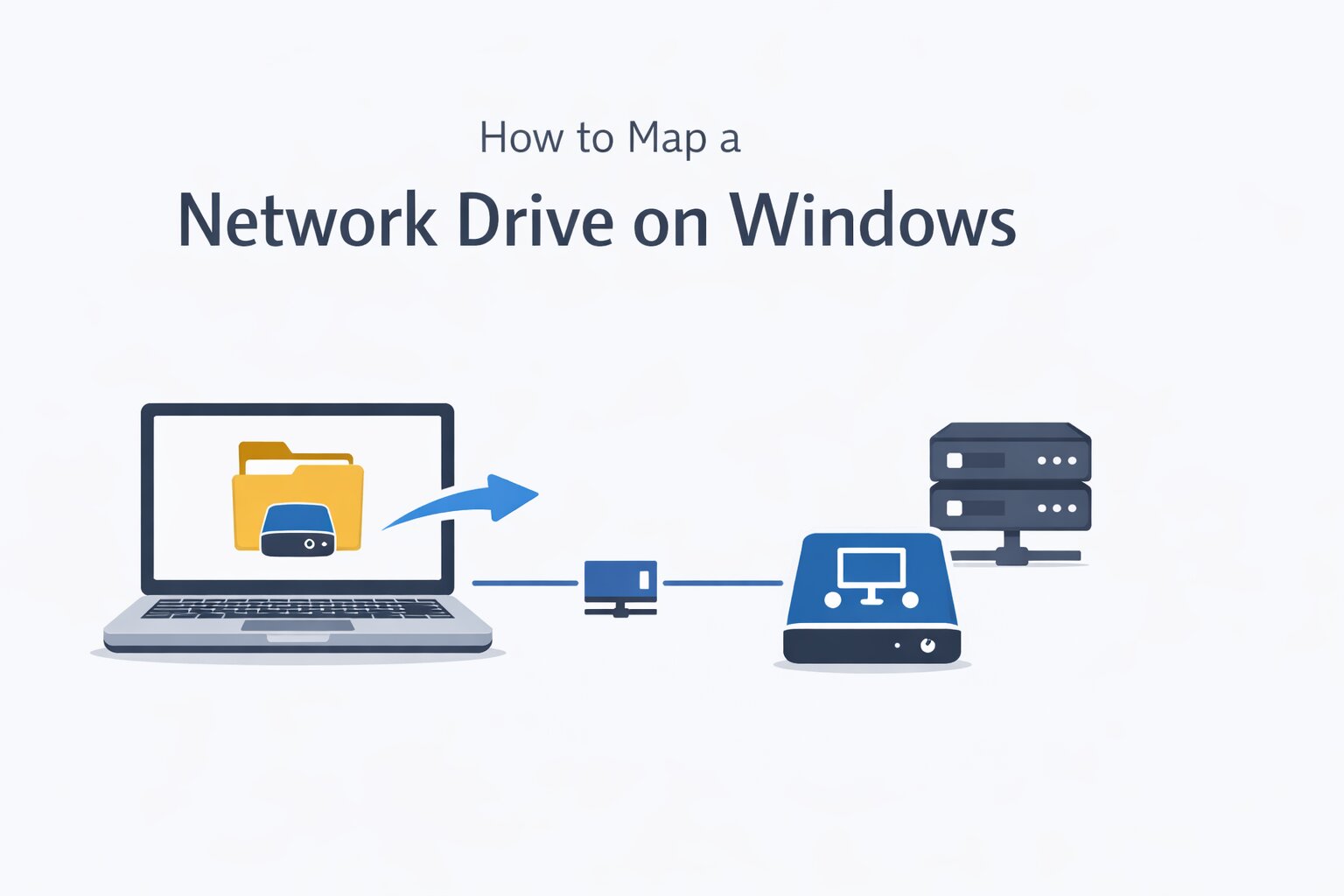

How To Map A Network Drive On Windows 11 10 In 2026 Step By Step Guide How To Map A Network Drive On Windows . Windows 11 2026 Roadmap Copilot Expansion And Long Overdue UI Fixes KAD Featured Windows 11 2026 Roadmap . Unraveling Your Network What Is Visual Mapping Best Free Mapping Tools In 2026 . Map Network Drives In Windows 11 Or 10 Map Network Drives In Windows 11 Or 10 . 2026 Windows Minto Tech Windows Network Drive Map Share Guide Body1

2026 Windows Minto Tech Windows Network Drive Map Share Guide Eyecatch 660x330 . What Is Switch Port Mapping And How To Start Using It 12 Best Network Mapping Tools For 2026 . CVE 2026 31658 Fixes Linux Altera Tse DMA Memory Leak After Dma Map 108113 . How To Force Uninstall ANY Stubborn Program In Windows Windows OS Hub Map A Network Drive Over Ssh In Windows . Why SA S EV Charging Network Still Has Gaps In 2026 And What S Being Photo 2.webp


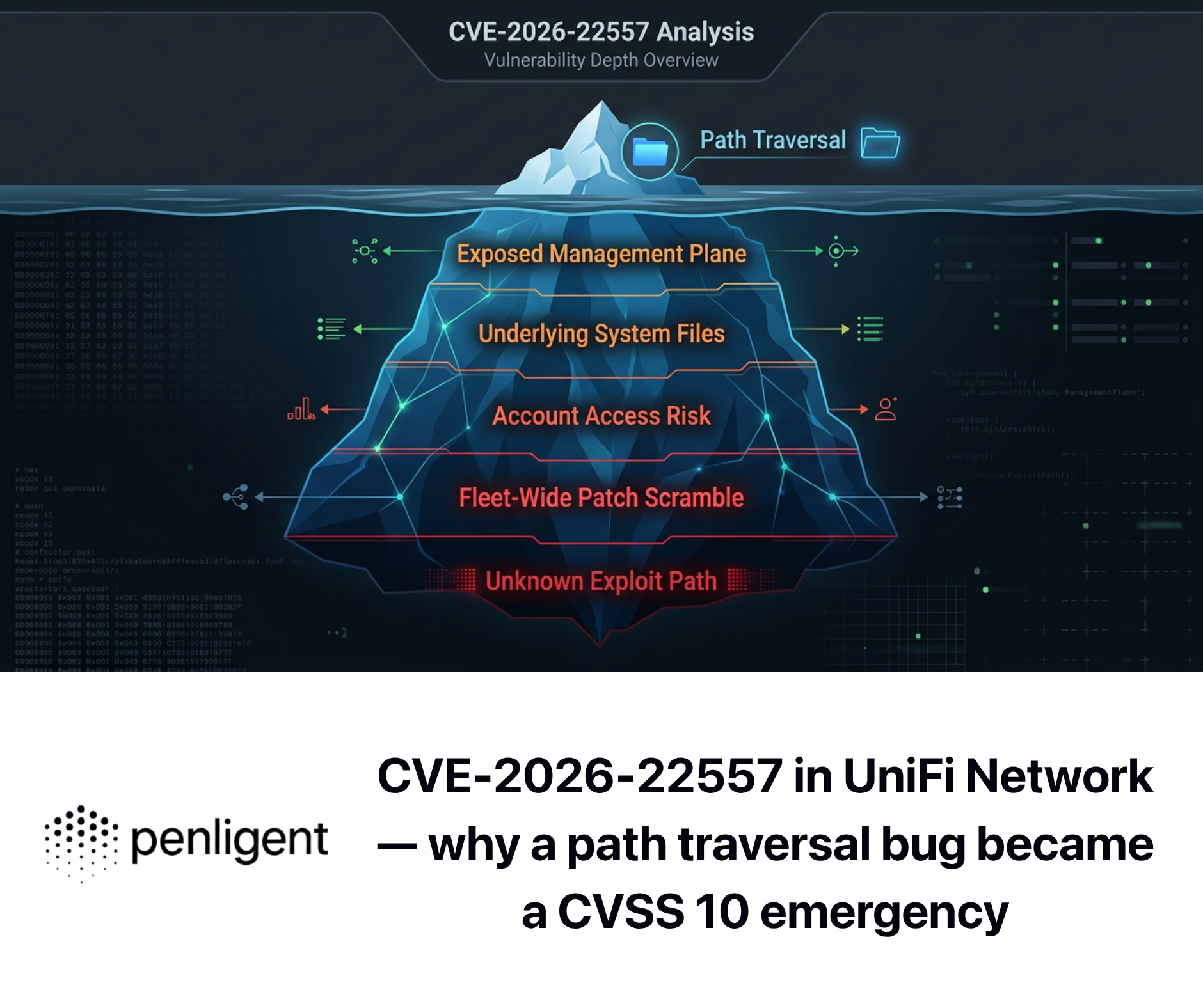

Why SA S EV Charging Network Still Has Gaps In 2026 And What S Being Byd Atto3 Road.webp. Here Is Why Gamers Are Switching To Linux Instead Of Windows In 2026 Here Is Why Gamers Are Switching To Linux Instead Of Windows In 2026 Ab27898 . CVE 2026 22557 In UniFi Network Why A Path Traversal Bug Became A CVE 2026 22557 In UniFi Network -- Why A Path Traversal Bug Became A CVSS 10 Emergency 1 . Map SharePoint As Network Drive 2026 EPC Group Image. 2026 Page 4 Of 144 Skift Two Attendees In During A Networking Break At Skift Global Forum 2025





Build 2026 Furthering Windows As The Trusted Platform For Development Agent Platform Updated . Colleagues Tapping Devices In Business Office Activating Animated Colleagues Tapping Devices In Business Office Activating Animated Network Map For Team Connections Coworking Daylight Focus Laptops Modern Windows 3f63tt5 . Windows CMD Command Master List 2026 200 Commands Explained For Security & Audit . 5 Proven Solutions To Fix Network Sharing Not Working In Windows 11 10 Screenshot 2026 02 06 141544. Delta Expands Summer 2026 Map With New Global Gateways Delta Summer 2026 New Long Haul Routes 1200x675


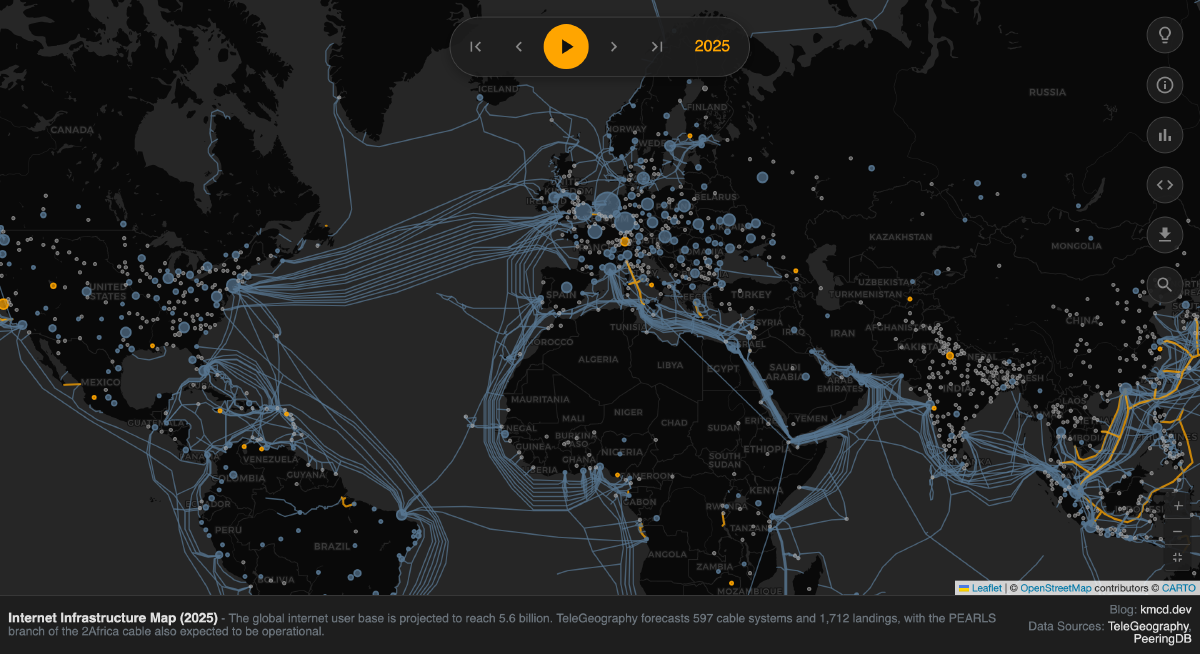

Microsoft 2026 Roadmap AI Agents Azure Security Overhauls And 1fbf78 . SIX Network Roadmap 2026 Bridge 1774573974 Roadmap 3.webp. Visualizing The Internet 2026 Clustering Yes Hu . 2026 Ethernet Roadmap Ethernet Alliance 2026 Roadmap Title 400x400 1 . Windows Server 2026 Spinpasta Wiki Fandom 1200
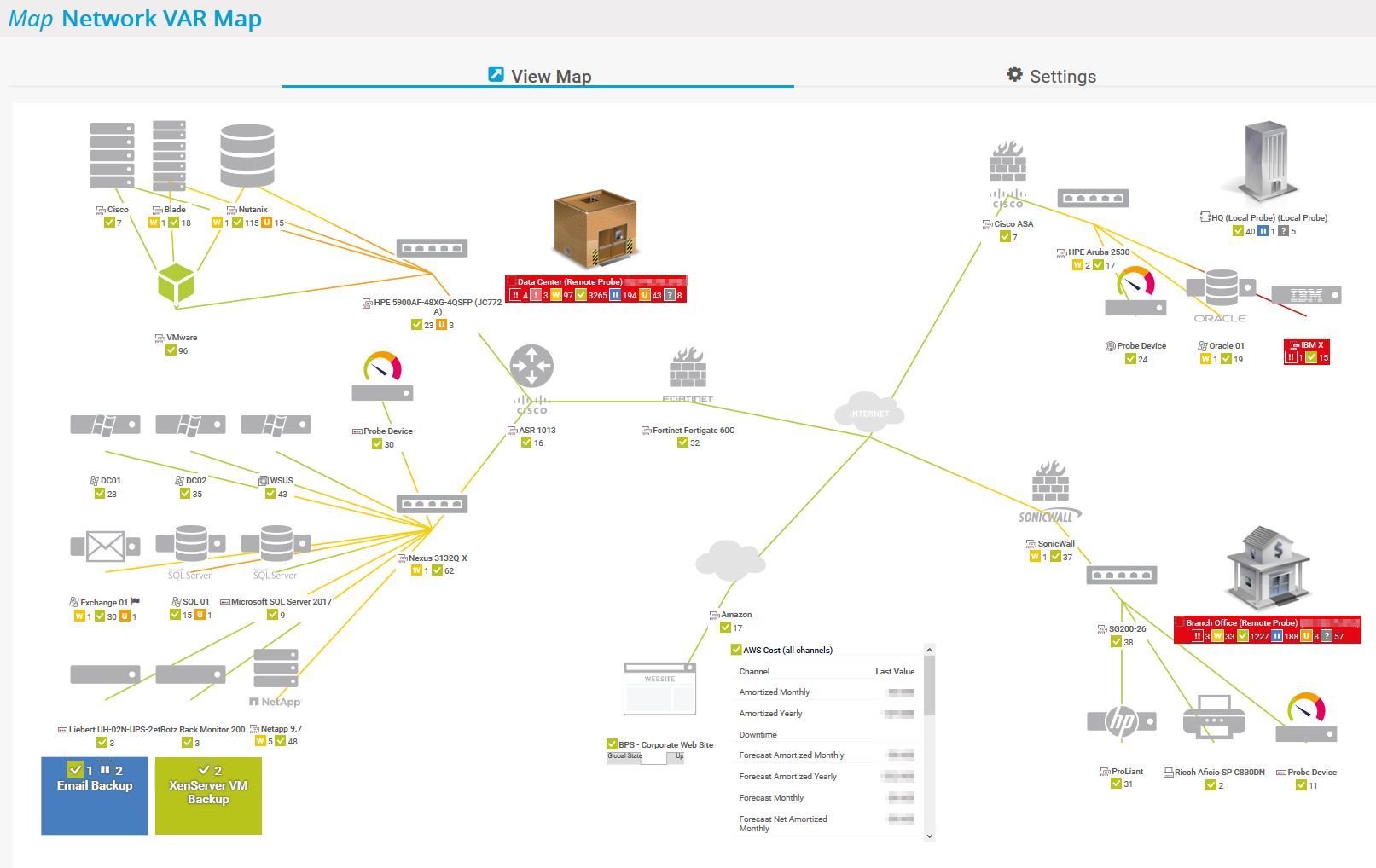



Free Network Mapping Software PRTG Map Network Var Map . Step By Step Guide To Mapping A Network Drive On Windows 11 Windows 11 Map Network Drive Hero Mauro Huculak. Local Area Network Map Software At Caleb Bateson Blog Network Map Utility In Windows 7 . How To Map A Network Drive Windows NinjaOne How To Map A Network Drive In Windows . No Sabemos C Mo Cambiar Windows 11 En 2026 Pero Ojal Se Parezca A Windows 2026




Windows 11 Is Testing New 2026 Features And Some Are Already Live. Map A Network Drive In Windows A Lab 101 Labs Microsoft - Map Network Drive3 . 2026 Nationwide Map By Certified Folder Display Issuu Page 1 Thumb Large . How To Change Windows 10 Network To Private F30YjQg4rn0 HD . TRUF NETWORK 2026 Roadmap 2026 Roadmap